- The Real Problem: Background Execution Changes the Runtime Context
- How Job Queue Actually Works
- What Happens on Failure
- Choosing the Right Async Mechanism
- The Most Important Rule: Background Code Must Be UI-Free
- Running Codeunits from the Job Queue
- Permissions, User Context, and SaaS Constraints
- Production Design Patterns
- Real Production Example: Integration Sync Through Job Queue
- Production Design Checklist
- Troubleshooting Checklist
- Conclusion
A common Business Central production issue starts with a good intention:
“This process takes too long in the UI. Let’s move it to the Job Queue.”
That sounds reasonable. The user no longer waits. The browser does not time out. The process can run later, maybe overnight. Everyone wins.
Until the first production failure.
The Job Queue entry moves to Error. A confirmation dialog that worked perfectly in the client now throws a callback exception. A recurring integration runs every few minutes and creates locking issues during working hours. A job runs under a user that does not have the permissions the developer had during testing. Or the job simply does not run when someone expected it to run immediately.
The Job Queue is not the problem. The problem is treating background execution as a small performance trick instead of an architectural boundary.
In Business Central, background execution changes the runtime context of your AL code. It changes UI availability, scheduling behavior, permissions, logging, retry expectations, troubleshooting, and performance impact.
This article explains how Job Queue, Task Scheduler, and background sessions actually fit together, and how to design async AL code that behaves safely in production.
The Real Problem: Background Execution Changes the Runtime Context
Moving logic from the foreground client to the background solves one problem: the user is no longer blocked.
But it introduces several others:
- There is no user interface.
- The code runs in a background session.
- The execution may be scheduled, not immediate.
- The user context and permissions still matter.
- Errors may appear in Job Queue logs, telemetry, or session events instead of directly in front of a user.
- Heavy jobs still consume Business Central and database resources.
- Recurring jobs can create performance issues if scheduled too aggressively.
- Retrying a failed job may be unsafe if the process was not designed for partial completion.
That is why Job Queue design should not start with the question:
“How do I run this in the background?”
It should start with:
“What happens if this process runs later, fails halfway, runs again, or runs without a UI?”
That question changes the design.
How Job Queue Actually Works
Microsoft describes the Job Queue as an abstraction over the Business Central Task Scheduler. It lets users view, create, modify, and schedule jobs that run in the background. These jobs can also be recurring.
That means the Job Queue is not a separate execution engine. It is a user-manageable scheduling and monitoring layer on top of platform background execution.
The general flow documented by Microsoft is:
- A Job Queue entry is created and set to Ready.
- Business Central creates a scheduled task, but not before the configured Earliest Start Date/Time.
- When the Task Scheduler picks up the task, a new background session is started.
- The background session runs through the Job Queue Dispatcher codeunit.
- The Job Queue entry is updated to In-Progress, and a Job Queue Log Entry is created.
- The configured Object ID to Run is started.
- If an exception occurs, the normal dispatcher path stops and the failure path runs.
This flow explains a common misconception: setting a Job Queue entry to Ready does not mean “run this immediately.” It means the job becomes eligible to be scheduled and picked up by the Task Scheduler according to its timing and platform constraints.
For production design, that distinction matters.
Do not use the Job Queue when your business process requires immediate, synchronous confirmation. Use it when the process can run asynchronously and can tolerate being scheduled.
What Happens on Failure
The failure path is one of the most important parts of Job Queue behavior, and it is often ignored.
Microsoft documents that when an exception occurs, Business Central runs the failure path. The Job Queue Error Handler codeunit runs in a new background session, updates the Job Queue entry to Error, saves errors using Error Message Management, and updates the Job Queue entry and log entry with error information.
Depending on recurrence and maximum attempts, the job may remain in Error or be rescheduled.
This is where platform behavior ends and application design begins.
Business Central can record that the job failed. It cannot automatically know whether your business process is safe to retry.
For example:
- Did the job already create some records?
- Did it call an external API before failing?
- Did it mark a record as processed too early?
- Did it fail because of permissions, bad data, locking, or a transient platform issue?
- Can support safely restart it?
A background job should be designed with failure in mind. The goal is not only to run successfully; the goal is to fail in a way that support teams can understand and recover from.
Choosing the Right Async Mechanism
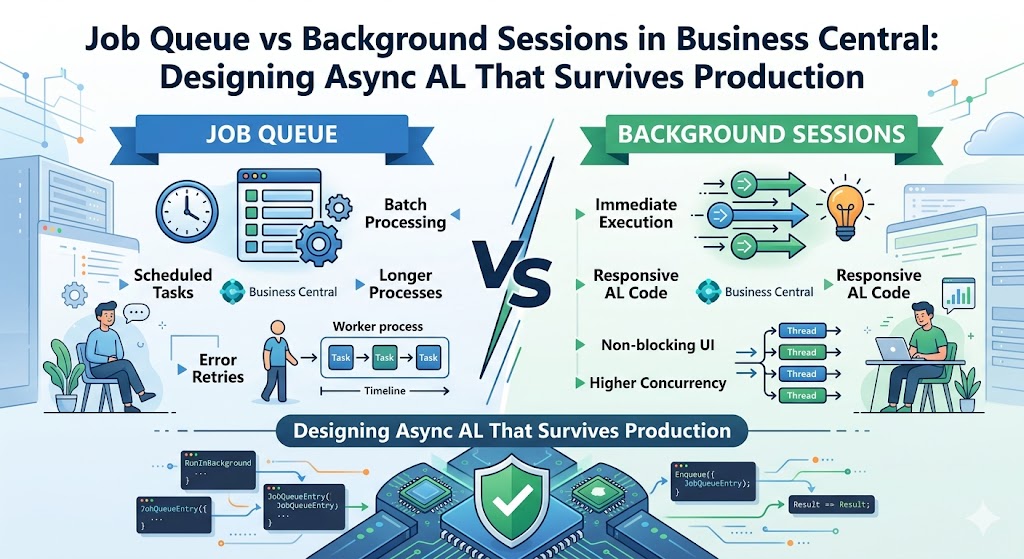
Business Central supports several async execution patterns. Microsoft lists four main options:
- Page Background Task
StartSessionTaskScheduler.CreateTask- Job Queue
They are related, but they are not interchangeable.
| Mechanism | Best fit | Key characteristics | Production caution |
|---|---|---|---|
| Page Background Task | Lightweight page-bound calculations | Read-only, child session, bound to a page, lightweight | Not suitable for durable business processing |
| StartSession | Immediate background execution | Starts a background session on the same server instance as the caller | Has resource cost; not a scheduling or monitoring framework |
| TaskScheduler.CreateTask | Programmatic scheduled work | Queued, can run on any server in a cluster, survives server restarts | No Job Queue administration UI or Job Queue log visibility |
| Job Queue | Scheduled or recurring business processing | Scheduled, recurring, runs as scheduled task, survives server restarts, logs results in Business Central | Requires operational design, monitoring, and retry-safe logic |
When to Use Job Queue
Use Job Queue when the process needs:
- Scheduling
- Recurrence
- User-visible administration
- Business Central logging
- Operational support by consultants or key users
- A clear place to see whether the job failed
Good candidates include:
- Nightly integration syncs
- Batch recalculations
- Scheduled report generation
- Data cleanup routines
- Processing staged records
- Periodic synchronization with external systems
When to Use StartSession
Use StartSession when you need to start a background session immediately and do not need Job Queue scheduling, recurrence, or user-facing Job Queue logs.
Microsoft documents that StartSession starts a background session without a UI, on the same Business Central instance as the caller, using the same user credentials as the calling AL code.
It also warns that each background session has resource impact similar to a regular user session, and that starting background sessions has a cost. That is why StartSession should not be used for small, frequent tasks.
In other words, StartSession is not a lightweight replacement for a normal procedure call.
When to Use Task Scheduler Directly
Use Task Scheduler directly when you need programmatic scheduling and do not need the Job Queue user interface or Job Queue logging experience.
Microsoft describes scheduled tasks as codeunits or reports scheduled to run at a specific date and time in a background session. If users need to modify scheduling, Microsoft recommends using the Job Queue.
When Not to Use Async
Sometimes the best solution is not background execution.
Do not move a process to the Job Queue just to hide poor performance.
For example:
- A report is slow because the dataset is inefficient.
- A posting routine is slow because subscribers do too much work.
- An integration polls too frequently because no incremental or event-driven design exists.
- A batch process scans all records every time because it does not track state.
The Job Queue may move the pain away from the user session, but it does not automatically fix inefficient logic. It can simply move the problem to the service tier, database, and support team.
The Most Important Rule: Background Code Must Be UI-Free
Background sessions do not have a user interface.
That one rule explains many Job Queue failures.
Microsoft documents that AL code running in background sessions or web service sessions must not assume that it can interact with the user. Trying to invoke dialog UI from a background session can result in callback-related errors such as:
NavNCLCallbackNotAllowedException: Callback functions are not allowed.Microsoft also lists several methods that should not be used in web service endpoints or background sessions, including:
Page.RunPage.RunModalReport.RunReport.RunModalHyperlinkFile.UploadFile.Download
The design rule is simple:
Business logic that may run from the Job Queue, an API, a web service, or a background session must not depend on UI interaction.
Use the UI to collect decisions. Use background code to execute decisions that have already been made.
Using GuiAllowed()
Microsoft recommends using GuiAllowed() when the same code may run in the UI, Job Queue, scheduled task, background session, or web service context.
A simple example:
if GuiAllowed() then
    Message('Processing completed.');
That is useful for optional user feedback.
But GuiAllowed() should not be used to hide a design problem.
This is risky:
if GuiAllowed() then
    if not Confirm('Do you want to process these records?') then
        exit;

ProcessRecords();
In a background session, the confirmation is skipped and the process may continue without the same decision being made.
A better design separates the UI decision from the processing logic:
- The foreground page asks the user for confirmation.
- The user decision is stored or passed explicitly.
- The background code executes deterministic logic without asking questions.
Background code should not ask the user what to do. It should already know what to do.
Running Codeunits from the Job Queue
Microsoft documents that when a codeunit runs from the Job Queue, it must declare an OnRun() trigger. That trigger is the entry point the underlying scheduler runs.
A minimal Job Queue codeunit looks like this:
codeunit 50142 "Process Customer Sync"
{
    trigger OnRun()
    begin
        RunCustomerSync();
    end;

    local procedure RunCustomerSync()
    begin
        // Keep this logic UI-free and retry-aware.
    end;
}
For scenarios where the same codeunit needs to support different Job Queue behaviors, Microsoft documents the TableNo = "Job Queue Entry" pattern. This lets the codeunit access fields such as "Parameter String" through Rec.
codeunit 50143 "Process Integration Job"
{
    TableNo = "Job Queue Entry";

    trigger OnRun()
    begin
        case Rec."Parameter String" of
            'CUSTOMERS':
                ProcessCustomers();
            'ITEMS':
                ProcessItems();
            else
                Error('Unsupported job queue parameter: %1', Rec."Parameter String");
        end;
    end;

    local procedure ProcessCustomers()
    begin
        // Customer sync logic.
    end;

    local procedure ProcessItems()
    begin
        // Item sync logic.
    end;
}
This is useful for simple routing. But the parameter string should not become a hidden state-management system.
For production processing, especially integrations, a better pattern is often:
- Job Queue Entry controls scheduling.
- A thin codeunit starts the process.
- A dedicated staging or control table stores business work.
- Each work item has status, attempt count, timestamps, error details, and external correlation IDs where relevant.
That last part is practical architecture guidance, not an official Microsoft platform guarantee. The platform gives you background execution and Job Queue logging. It does not automatically give you business-level retry semantics.
Permissions, User Context, and SaaS Constraints
Background execution does not bypass permissions.
Microsoft documents that a Job Queue session runs using the same user credentials used when calling AL code. For Job Queue entries, the user is the user who sets the job to Ready. That user must have the appropriate permissions to run the job and the objects associated with it.
This creates a common production trap:
- The developer tests the job with broad permissions.
- The job works in the sandbox.
- A customer user or consultant sets it to Ready in production.
- The job fails because that user does not have the required permissions.
Production recommendations:
- Test with realistic permission sets.
- Do not validate only with SUPER.
- Document the permissions required to schedule and run the job.
- Make setup and permission errors clear.
- Consider which user should own the scheduled execution.
Microsoft also documents an important delegated admin limitation: delegated admins cannot schedule tasks. They can test Job Queues by copying a job and running it once in the foreground, but not as a recurring or scheduled task.
For SaaS implementations, this matters. A partner may be able to test foreground execution, but the customer’s licensed user context may still be required for actual scheduled processing.
Business Central Online also has operational limits for background and scheduled execution. Microsoft confirms these limits exist, but exact numbers should always be checked against the current operational limits documentation for the target environment.
The design implication is straightforward:
Do not design SaaS background processing as if you have unlimited sessions, unlimited runtime, unlimited retries, or unlimited database capacity.
Production Design Patterns
Keep the Entry Point Thin
The Job Queue codeunit should usually be an entry point, not the whole implementation.
Prefer this shape:
trigger OnRun()
var
    Processor: Codeunit "My Integration Processor";
begin
    Processor.RunFromJobQueue(Rec);
end;
This keeps the Job Queue-specific logic small and lets the actual process be reused from:
- Page actions
- APIs
- Test codeunits
- Manual retry actions
- Setup or support tools
Make Jobs Retry-Safe
A background job can fail after doing partial work.
Design for that.
Practical guidance:
- Do not mark records as processed before the operation succeeds.
- Store external correlation IDs when calling external systems.
- Avoid creating duplicate records when the job runs again.
- Track status per work item where needed.
- Make manual retry behavior explicit.
- Log enough context for support to decide what to do next.
Microsoft documents the platform failure path, but business-level retry safety is your responsibility.
Chunk Long-Running Work
Avoid designing one job that processes everything in a single huge run.
A safer pattern is:
- Select a limited number of pending records.
- Process them.
- Store progress.
- Leave remaining work for the next run.
- Make the job resumable.
There is no universal chunk size. It depends on data volume, table behavior, extensions, integration latency, and the customer environment. Validate it in the target environment.
Avoid Business-Hour Locking
Microsoft warns that scheduled tasks or Job Queue entries can impact performance if they run too frequently or if heavy jobs run while many users are using Business Central. It specifically recommends considering alternatives to polling, such as webhooks, and running heavy jobs outside working hours to reduce locking and deadlock issues.
In practice, be careful with jobs that touch:
- Posting routines
- Ledger entries
- Item availability
- Reservations
- Sales and purchase documents
- Integration staging tables
- Large custom tables
- Reports over large datasets
Scheduling is not just an operational setting. It is part of the technical design.
Use Parameters Carefully
The Job Queue "Parameter String" is fine for simple routing:
case Rec."Parameter String" of
    'CUSTOMERS':
        ProcessCustomers();
    'ITEMS':
        ProcessItems();
end;
But complex state belongs in tables, not in a parameter string.
If the process needs retry counts, statuses, external IDs, timestamps, or per-record errors, create a proper processing table.
Real Production Example: Integration Sync Through Job Queue
Imagine an e-commerce integration.
The first version is simple:
- A Job Queue entry runs every five minutes.
- It calls the external API.
- It imports orders.
- It creates sales orders.
- It marks external orders as synchronized.
This may work in a demo. In production, the weak points appear quickly:
- One bad order blocks the whole sync.
- A UI confirmation fails in the background.
- A partial failure creates duplicate orders on retry.
- The job runs during business hours and competes with users editing orders.
- Support only sees a failed Job Queue entry, not which order failed.
A more production-safe design looks different:
- The Job Queue entry starts a thin orchestration codeunit.
- External orders are imported into a staging table.
- Each staged order has a unique external ID and processing status.
- Pending orders are processed in chunks.
- Errors are stored per staged order.
- Retry is explicit and safe.
- UI interaction is kept outside the processing code.
- Job Queue logs and telemetry are used for operational monitoring.
- Heavy work is scheduled based on customer usage patterns.
That is the difference between “it runs in the background” and “it survives production.”
Production Design Checklist
| Question | Why it matters |
|---|---|
| Can the process run without any UI? | Background sessions cannot rely on user interaction. |
| Is the job safe to retry? | Failures may happen after partial processing. |
| Does the job store enough business-level state? | Job Queue logs do not replace process-specific tracking. |
| Are permissions tested with a realistic user? | The job runs under a real user context, not automatically as SUPER. |
| Is the schedule appropriate for production load? | Frequent or heavy jobs can affect users and database performance. |
| Can the job process work in chunks? | Smaller units are easier to retry and troubleshoot. |
| Are external calls protected against duplicates? | Retrying after partial failure can create duplicate external effects. |
| Is the parameter string only used for simple routing? | Complex state should be stored in tables. |
| Are telemetry and logs sufficient for support? | A failed background job needs operational visibility. |
| Is polling really necessary? | Webhooks or event-driven designs may be better for some scenarios. |
Troubleshooting Checklist
When a Job Queue entry fails or behaves unexpectedly, start with the basics.
1. Check the Job Queue Entry
- Status
- Earliest Start Date/Time
- Object Type to Run
- Object ID to Run
- Parameter String
- Recurrence
- Maximum No. of Attempts
- Category Code
2. Check the Job Queue Log Entries
- Last error
- Last run time
- Whether the job started or failed before execution
3. Check Permissions
- Which user set the job to Ready?
- Does that user have permission to run the codeunit and access required tables?
4. Check for UI Callbacks
Look for Confirm, Page.RunModal, Report.RunModal, file upload/download, hyperlinks, or other UI-bound logic.
5. Check Telemetry
Microsoft documents Job Queue lifecycle telemetry events, including:
- Job Queue entry enqueued
- Job Queue entry started
- Job Queue entry finished
- Job Queue entry failed
- Job Queue entry failed for the last time
6. Check Session Events
Microsoft notes that the Session Events table can be opened from the web client by adding table=2000000111 to the URL.
7. Use Foreground Run Carefully
Running once in the foreground can help reproduce some errors, but it is not identical to background execution. UI availability and timing can differ.
Conclusion
The Job Queue is one of the most useful production tools in Business Central, but it is often misunderstood.
It is not just “run this later.” It is a scheduled background execution model built on the Task Scheduler, with its own session behavior, permissions context, failure path, logging, telemetry, and performance implications.
Use Job Queue when you need scheduled, recurring, user-manageable background processing with Business Central visibility.
Use StartSession when you need immediate background execution and understand the resource cost.
Use Task Scheduler when you need lower-level scheduled tasks without the Job Queue administration layer.
Use Page Background Tasks for lightweight page-bound work.
Most importantly, design background AL as production infrastructure:
- No UI assumptions
- Retry-safe processing
- Clear operational logs
- Realistic permissions
- Careful scheduling
- Chunked work where appropriate
- Explicit handling of failures
A Job Queue implementation is successful not when it works once in a sandbox, but when support can understand it, retry it, and trust it in production.