- Quick reference: Experience vs. Access
- Profiles (Roles): what they really do
- Permission sets: what actually controls access
- The entitlement trap: license is the hard boundary
- Effective Permissions: where the truth lives
- Security filters: record-level security (and the “least restrictive” surprise)
- What mature Business Central environments do (the architecture)
- Call to action: validate one “restricted” user today
In Business Central, it’s easy to confuse what a user sees with what a user can do.
You hide an action. You remove a page from navigation. You customize a Role Center. The workspace looks “locked down”… and everyone relaxes.
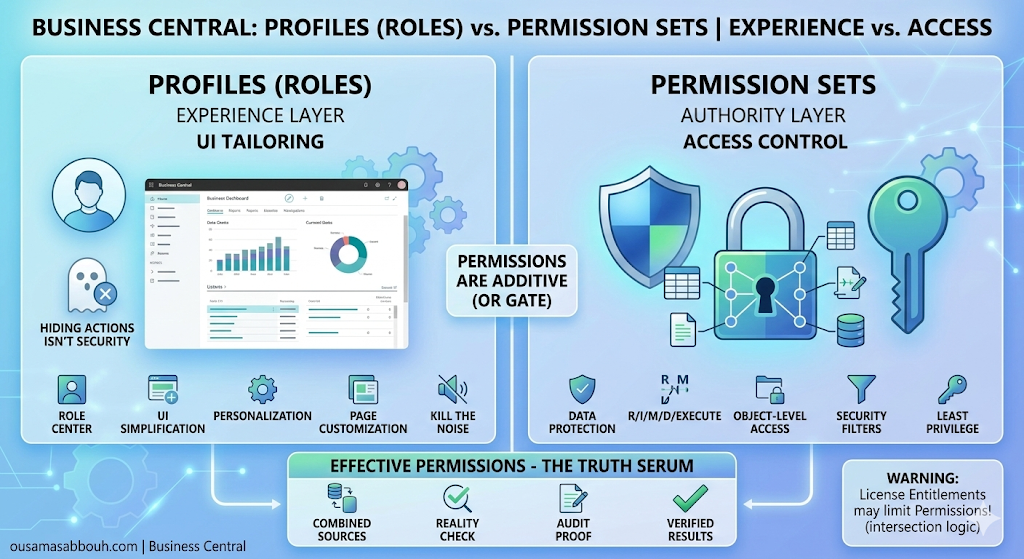
But Business Central was built with a deliberate split:
- Profiles (Roles) shape the role-tailored experience in the client.
- Permission sets control access to data and objects (read, insert, modify, delete, execute).
- Entitlements (license) set the outer boundary for what a user is entitled to use, and they have higher priority than permissions.
- Effective Permissions is where you validate the real outcome.
If you take nothing else from this post, take this:
If you want to know what a user can actually do, don’t look at the menu.
Look at Effective Permissions.
Quick reference: Experience vs. Access
| Topic | Profiles (Roles) | Permission sets |
|---|---|---|
| What it controls | Role-tailored experience (Role Center + related pages/reports) | Permissions to data and objects (R/I/M/D/Execute) |
| Where you manage it | Profiles (Roles) page + profile page customization | Permission Sets + security groups + user assignments |
| What it’s good for | Making the workspace fit the job | Controlling what users can do in the database |
| How to verify | Sign in under the role / switch roles in My Settings | Effective Permissions (shows sources + security filters + entitlement effects) |
Profiles (Roles): what they really do
A profile is the mechanism that makes a Role Center and its associated pages and reports available to users in the client. In other words: it helps you build an individual experience based on role.
Admins manage profiles in Profiles (Roles). A profile card includes the role name, user settings, and the Role Center the profile uses.
Where profiles shine: consistent, role-tailored UI
Business Central supports both:
- personalization (users tailor their own pages), and
- customization for profiles (admins customize page layouts for a profile so all assigned users see the same customized pages).
Admins can also control whether a profile is enabled, is the default profile, whether personalization is disabled for that role, and whether actions/features show in Role Explorer.
The point of all of this is clear: profiles are for the experience layer.
Permission sets: what actually controls access
Permissions in Business Central define access to data and objects. At a minimum, think in the standard access types:
- Read
- Insert
- Modify
- Delete
- Execute
Permission sets group these permissions into logical sets you can assign to users. Admins give users access by assigning one or more permission sets, either directly on the user record or through a security group.
And when users have multiple permission sets from different sources, their effective permissions reflect the combined result — while still being limited by licensing.
The entitlement trap: license is the hard boundary
In Business Central online, entitlements describe which objects a user is entitled to use according to their license (or Microsoft Entra role). When the user logs in, Business Central applies the intersection of:
- the entitlements associated with the user’s plan, and
- the permissions defined for that user.
Entitlements have higher priority than permissions. The practical takeaway is simple:
You can assign broad permission sets, but entitlements can still limit what’s effective.
This is one of the most common reasons an admin “keeps adjusting permissions” and nothing changes: the limitation isn’t coming from permission sets — it’s coming from entitlement.
Effective Permissions: where the truth lives
The Effective Permissions page is your single best tool for eliminating guesswork.
It shows:
- which database objects the user has access to,
- which permission set(s) grant that access (and whether they come from a security group),
- and which security filters are applied.
It also highlights entitlement-derived permissions and how entitlement priority affects what is actually effective.
If you’re troubleshooting access, Effective Permissions is the authoritative view.
Security filters: record-level security (and the “least restrictive” surprise)
Record-level security in Business Central is implemented using security filters on table data. A security filter describes a set of records in a table that a user has permission to access.
Security filters are configured on permission sets (on table data lines). And there’s one behavior you must design around:
When multiple permission sets that refer to the same table data are assigned to a user, security filters are combined so that the least restrictive filter is used.
Because of that, you shouldn’t repeat a table in multiple permission sets if you plan to combine those permission sets for one user.
That line alone explains a huge number of “how did they end up seeing that?” moments.
What mature Business Central environments do (the architecture)
A governable tenant uses the layers the way Business Central designed them:
- Profiles (Roles) to deliver a role-tailored UI and consistent workspace through profile customization.
- Permission sets (often assigned through security groups) to define access to data and objects using R/I/M/D/Execute.
- Security filters for record-level boundaries — carefully designed, because overlapping filters across multiple permission sets can result in the least restrictive outcome.
- Effective Permissions to validate the result and troubleshoot what’s really effective.
- Entitlements as the top boundary that can limit what permissions can achieve.
This is not extra bureaucracy. It’s how you keep access predictable over time.
Call to action: validate one “restricted” user today
Open Users, choose a user you believe is tightly restricted, and run Effective Permissions.
Look specifically for:
- permissions coming from security groups you forgot were assigned,
- security filters on table data (and whether the same table appears in multiple sets),
- and entitlement rows that explain why a permission change didn’t take effect.
Business Central already tells you the truth.
Your job is to read it before assumptions turn into surprises.