Introduction
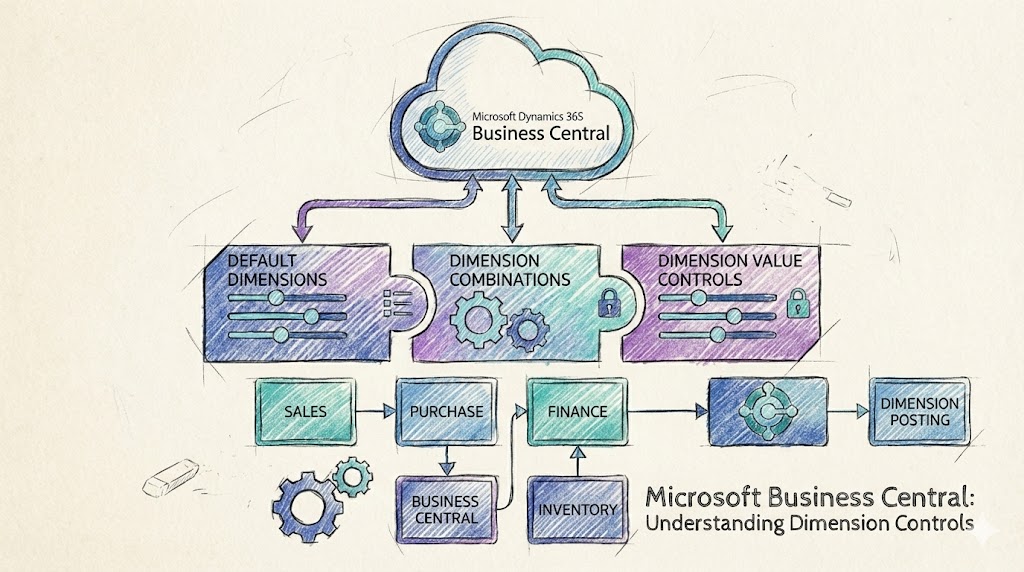
Dimensions in Microsoft Dynamics 365 Business Central are one of the system’s most powerful mechanisms for capturing analytics, enforcing financial structure, and enabling insightful reporting. Yet they are also one of the most misunderstood areas during implementations.
This deep-dive explains how default dimension controls work, including Allowed Values, Value Posting rules, Location-based inheritance, dimension priorities, and how Business Central resolves conflicts.
The Core Components of Default Dimension Control
Business Central’s dimension control framework includes five main elements:
1. Default Dimensions (Master Data–Level Rules)
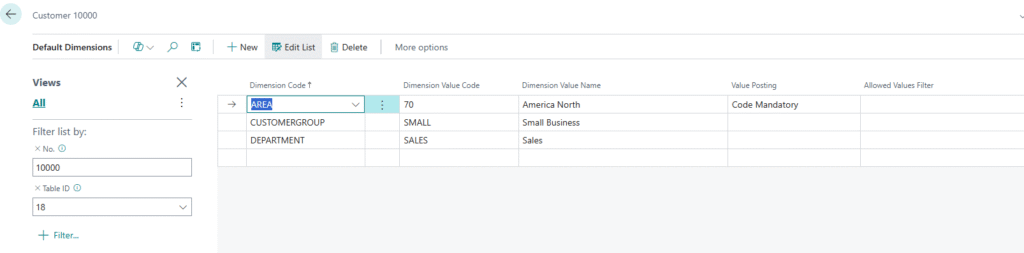
Every master data record, Customers, Vendors, Items, Resources, Jobs, Employees, and Locations, can carry default dimension values.
Example: Customer Card → Dimensions
2. Value Posting Rules
These rules determine how strictly dimensions are enforced:
| Setting | Meaning |
|---|---|
| No Code | Dimension must not be used |
| Code Mandatory | Dimension must be filled in |
| Same Code | Only this specific dimension value is allowed |
| Blank | Optional |

3. Allowed Dimension Values
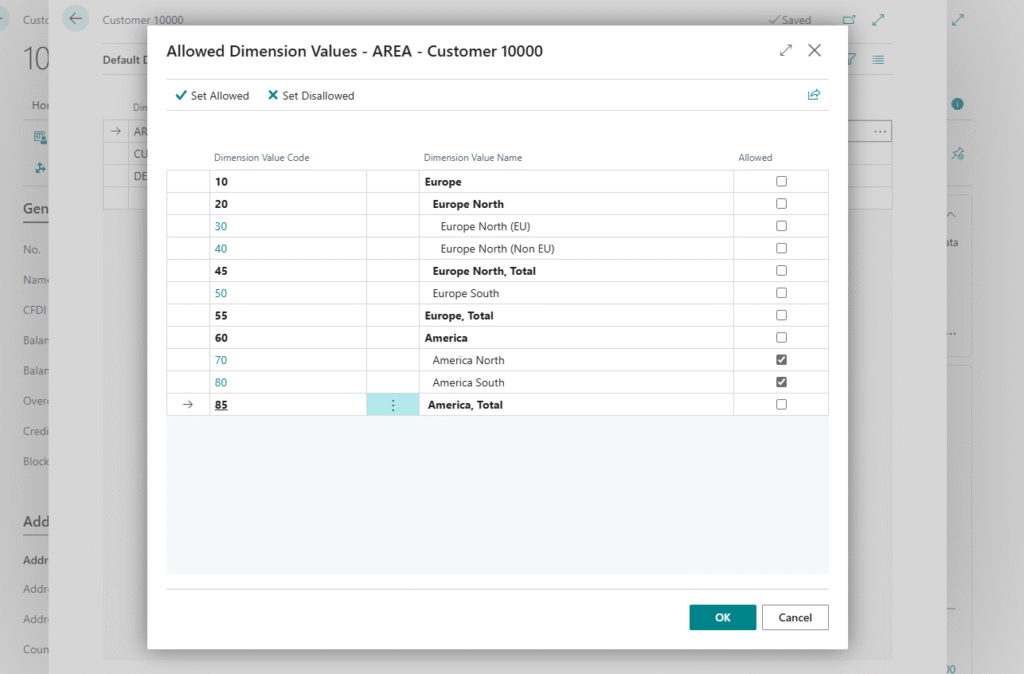
One of the most powerful controls introduced in recent releases. Even if a dimension is mandatory, you can restrict users to a limited subset of values.
Example:
A customer may operate only in America North and America South.
4. Default Dimension Priorities
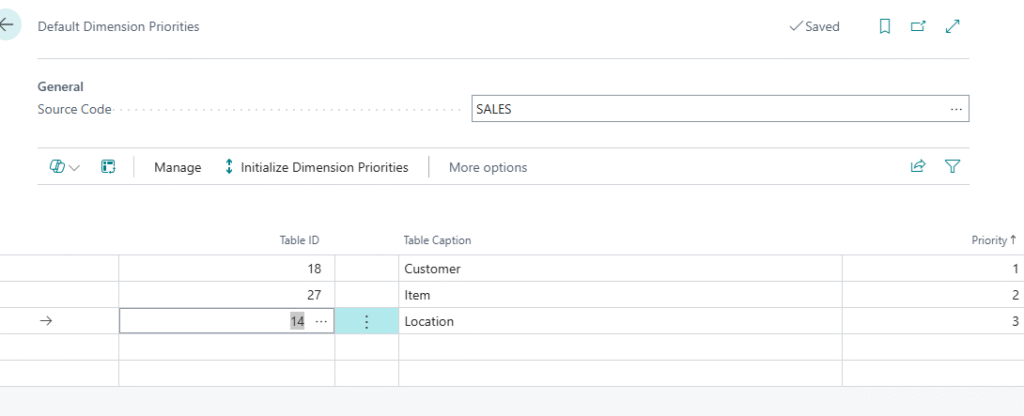
When multiple default sources apply (Customer, Item, Location), Business Central applies a priority order.
Example priority:
- Customer
- Item
- Location
This determines which dimension “wins” when multiple defaults conflict.
5. Location-Based Dimensions
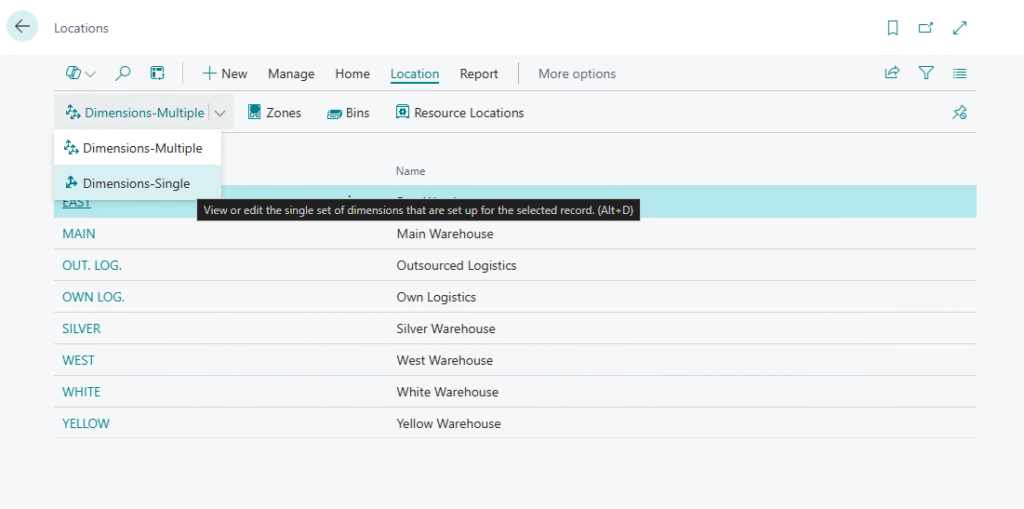
Location cards can also carry default dimensions. These defaults flow into inventory journals, warehouse documents, and transfer orders.
How Business Central Resolves Dimension Conflicts
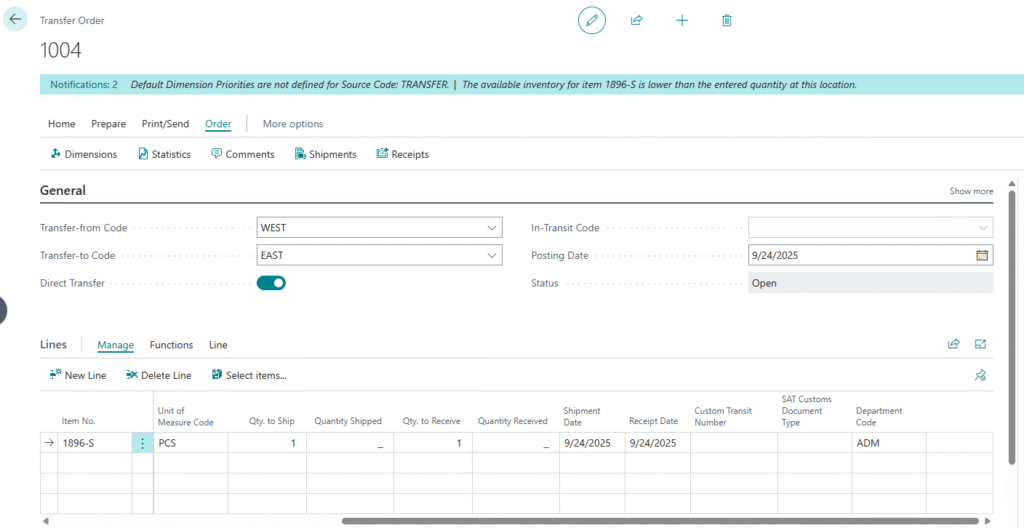
The most misunderstood part of dimension handling is inheritance in Transfer Orders.
Business Central uses a rule:
The dimension from the last location field the user changes takes priority.
Meaning:
- If EAST → WEST is entered in that order, WEST’s dimensions apply.
- If WEST → EAST is entered in that order, EAST’s dimensions apply.
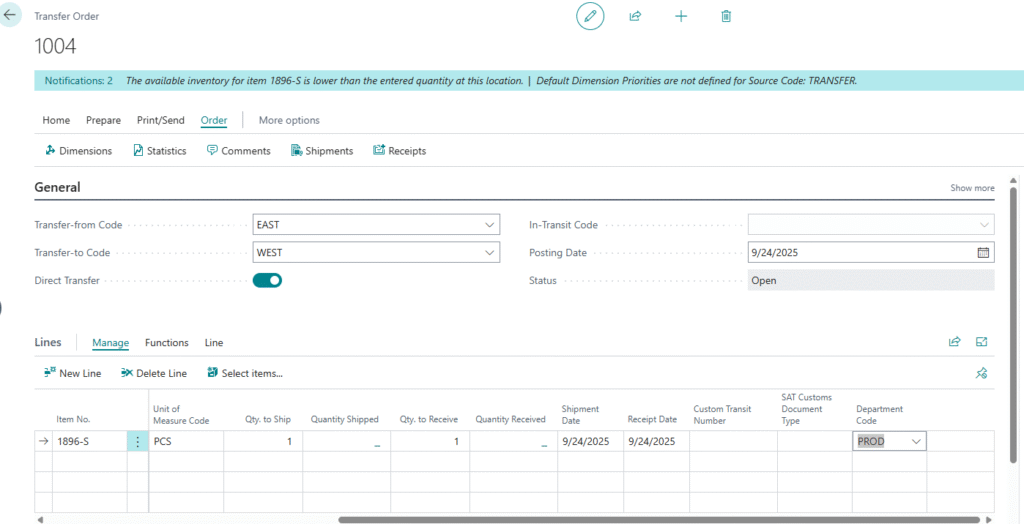
Scenario A: EAST → WEST
Transfer-from: EAST → Transfer-to: WEST results in Department = PROD (from WEST).
Scenario B: WEST → EAST
Transfer-from: WEST → Transfer-to: EAST results in Department = ADM (from EAST).
Using Dimensions in Journals and Transactions
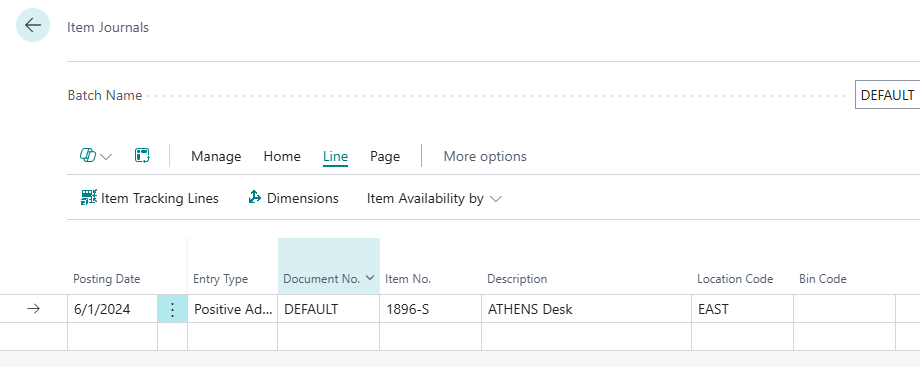
Default dimensions will automatically populate on journal lines whenever possible.
Dimension Set Entries applied automatically for item journal entry (DEPARTMENT = ADM).
Summary
Default dimension controls in Business Central provide powerful mechanisms to:
- Enforce financial structure
- Improve report accuracy
- Reduce manual corrections
- Prevent mis-postings
- Automate analytics tagging
Your included screenshots illustrate how Business Central behaves in real scenarios, such as customer-based dimensions, location inheritance, allowed values, and Transfer Order dimension conflicts.
With correct configuration and communication, dimensions transform from a confusing setup task into a strategic reporting advantage.