A dangerous Business Central extension upgrade often begins with a change that looks harmless:
“We only renamed one field and replaced its Text value with an Enum.”
The new version compiles. It installs successfully in a clean sandbox. The page works, and the new field accepts values correctly.
Then the extension reaches production.
The old field already contains years of customer data. Another extension still references it. One company contains unexpected historical values. Schema synchronization fails—or someone uses ForceSync and discovers afterward that data has disappeared.
The real challenge is not publishing a new .app file.
It is evolving a live extension schema while preserving the meaning and integrity of existing customer data.
This article explains the production-safe pattern for replacing fields and migrating data during a Business Central extension upgrade:
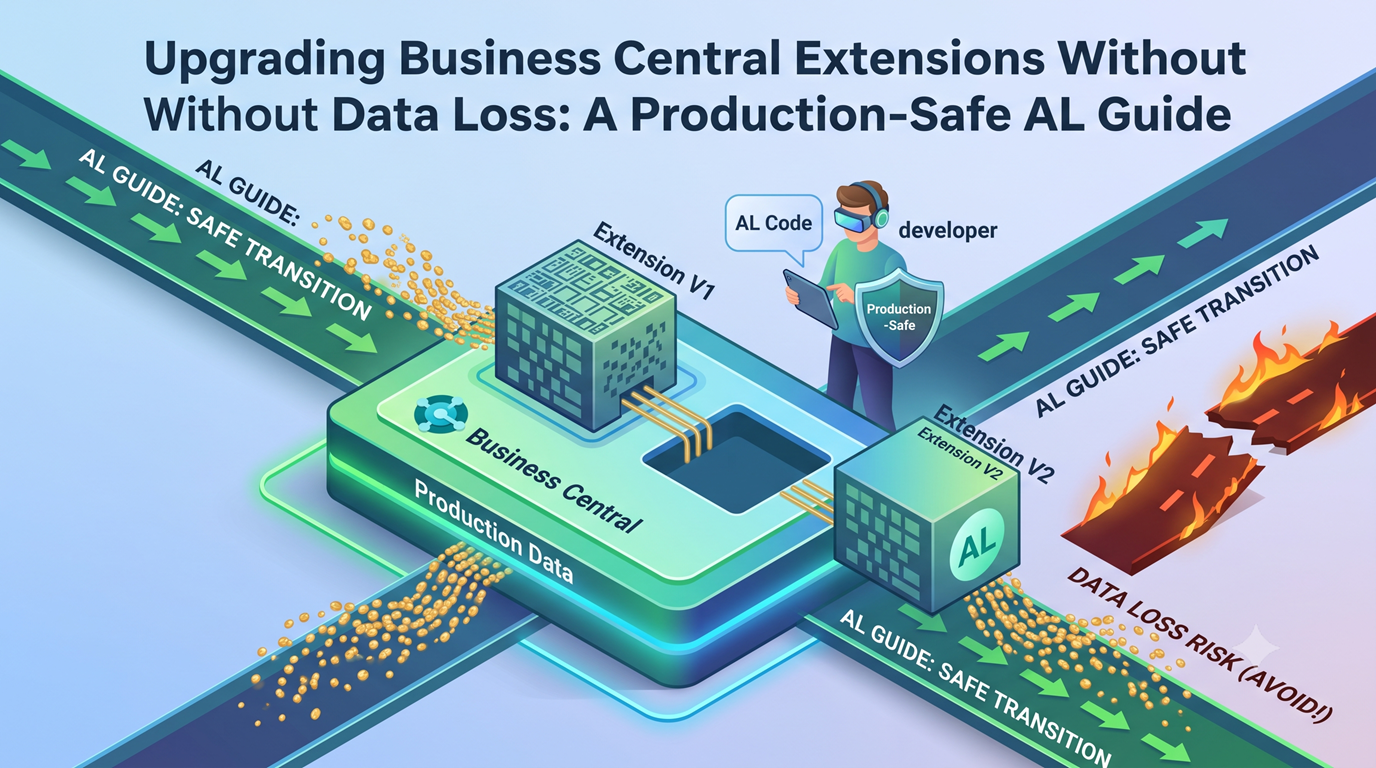
Add the new schema, migrate the existing data, validate the result, and obsolete the old schema gradually.
- Schema Synchronization Is Not Data Migration
- The Safe Pattern: Add, Migrate, Validate, Obsolete
- AL Example: Replacing a Text Field With an Enum
- Use an Upgrade Tag to Control the Migration
- Build the Upgrade Codeunit
- Why This Upgrade Code Is Safer
- Why Use Customer.Modify(false)?
- Upgrade Tags Do Not Replace Data Validation
- Why ForceSync Is Not an Upgrade Strategy
- What About Large Data Volumes?
- Monitor Upgrade Failures With Telemetry
- Production Testing Checklist
- Conclusion
Schema Synchronization Is Not Data Migration
Business Central performs two related but different operations during an extension upgrade:
- Schema synchronization
- Data upgrade
Understanding this distinction prevents many upgrade failures.
Schema Synchronization
Schema synchronization compares the new extension metadata with the existing database schema.
It can normally apply additive changes such as:
- Adding a new table
- Adding a new field
- Adding compatible keys
- Adding new extension objects
However, the platform cannot determine how existing data should be transformed when you:
- Change a field type
- Rename a published field
- Remove a field
- Replace a table
- Change a primary key
- Redesign the meaning of stored values
For example, changing a field from Text[20] to an Enum does not tell Business Central how values such as ACTIVE, Active Customer, or A should be mapped.
That is a business decision, not a schema decision.
Data Upgrade
Data transformation belongs in an upgrade codeunit:
codeunit 50100 "My Extension Upgrade"
{
    Subtype = Upgrade;
}
There are three upgrade phases:
| Phase | Purpose |
|---|---|
| Preconditions | Verify that the existing data can be upgraded safely |
| Upgrade | Perform the data transformation |
| Validation | Confirm that the migration completed successfully |
The corresponding per-company triggers are:
trigger OnCheckPreconditionsPerCompany()
trigger OnUpgradePerCompany()
trigger OnValidateUpgradePerCompany()
There are also per-database versions for data where DataPerCompany = false.
Microsoft documents that errors raised during these triggers cancel the extension upgrade. It also states that the relative execution order of separate upgrade codeunits is not guaranteed.
Upgrade codeunits should therefore either run independently or keep dependent migration steps inside one controlled flow.
The Safe Pattern: Add, Migrate, Validate, Obsolete
When replacing a published field, use the following sequence.
1. Keep the Existing Field
Do not immediately rename, delete, or change the data type of the original field.
The old field is where the production data currently exists.
2. Add the Replacement Field
Give the replacement field a new ID and the required data type.
Both fields should temporarily exist in the same extension version.
3. Validate the Existing Data
Before copying anything, verify that all existing values can be converted.
Do not silently guess what an unsupported value means.
4. Migrate the Data
Copy or transform the old values into the new field.
Protect already populated destination values from accidental overwriting.
5. Validate the Result
Confirm that every record requiring migration received the correct new value.
6. Mark the Old Field as Obsolete
Once application logic uses the replacement field, mark the old field as obsolete using:
ObsoleteStateObsoleteReasonObsoleteTag
Do not physically remove it immediately.
For AppSource extensions, marking a field as Removed does not automatically mean it can be deleted from the extension package. Published fields still participate in schema compatibility validation.
This staged pattern preserves compatibility while allowing the extension to evolve safely.
AL Example: Replacing a Text Field With an Enum
Assume version 1 of an extension added a Text field to the Customer table:
field(50120; "OSB External Status"; Text[20])The field contains values such as:
ACTIVEBLOCKED- Blank
Version 2 should replace it with an Enum.
Changing the existing field type directly would be unsafe. Instead, keep the original field and add a new one.
Define the New Enum
enum 50120 "OSB Customer Sync Status"
{
    Extensible = false;

    value(0; Unspecified)
    {
        Caption = 'Unspecified';
    }

    value(1; Active)
    {
        Caption = 'Active';
    }

    value(2; Blocked)
    {
        Caption = 'Blocked';
    }
}
Keep the Old Field and Add the New Field
tableextension 50120 "OSB Customer Upgrade" extends Customer
{
    fields
    {
        field(50120; "OSB External Status"; Text[20])
        {
            DataClassification = CustomerContent;
            ObsoleteState = Pending;
            ObsoleteReason =
                'Replaced by OSB Sync Status. Existing values are migrated during upgrade.';
            ObsoleteTag = '2.0';
        }

        field(50121; "OSB Sync Status"; Enum "OSB Customer Sync Status")
        {
            Caption = 'Sync Status';
            DataClassification = CustomerContent;
        }
    }
}
The original field remains the same:
- Field ID
- Field name
- Data type
This allows the upgrade code to read the existing production values while populating the replacement field.
Use an Upgrade Tag to Control the Migration
Upgrade code should not run repeatedly without control.
Business Central provides the Upgrade Tag module to track whether a specific migration has already completed.
Create a small codeunit that defines and registers the tag:
codeunit 50121 "OSB Upgrade Tag Definitions"
{
    procedure GetCustomerStatusUpgradeTag(): Code[250]
    begin
        exit('OSB-50121-CustomerStatus-20260717');
    end;

    [EventSubscriber(
        ObjectType::Codeunit,
        Codeunit::"Upgrade Tag",
        'OnGetPerCompanyUpgradeTags',
        '',
        false,
        false)]
    local procedure RegisterPerCompanyUpgradeTags(
        var PerCompanyUpgradeTags: List of [Code[250]])
    begin
        PerCompanyUpgradeTags.Add(GetCustomerStatusUpgradeTag());
    end;
}
Registering the tag through OnGetPerCompanyUpgradeTags is important for companies created after the extension upgrade.
Without this registration, a future upgrade might treat a newly created company as though it still requires an old migration.
Build the Upgrade Codeunit
The upgrade codeunit should:
- Skip the migration if its upgrade tag already exists.
- Check whether all old values are supported.
- Migrate the values.
- Prevent conflicting target values from being overwritten.
- Validate the final result.
- Set the upgrade tag only after migration and validation succeed.
codeunit 50122 "OSB Upgrade Customer Status"
{
    Subtype = Upgrade;

    trigger OnCheckPreconditionsPerCompany()
    begin
        if not IsCustomerStatusMigrationRequired() then
            exit;

        CheckLegacyStatusValues();
    end;

    trigger OnUpgradePerCompany()
    begin
        if not IsCustomerStatusMigrationRequired() then
            exit;

        MigrateCustomerStatuses();
    end;

    trigger OnValidateUpgradePerCompany()
    var
        UpgradeTag: Codeunit "Upgrade Tag";
        UpgradeTagDefinitions: Codeunit "OSB Upgrade Tag Definitions";
    begin
        if not IsCustomerStatusMigrationRequired() then
            exit;

        ValidateCustomerStatusMigration();

        UpgradeTag.SetUpgradeTag(
            UpgradeTagDefinitions.GetCustomerStatusUpgradeTag());
    end;

    local procedure IsCustomerStatusMigrationRequired(): Boolean
    var
        UpgradeTag: Codeunit "Upgrade Tag";
        UpgradeTagDefinitions: Codeunit "OSB Upgrade Tag Definitions";
    begin
        exit(
            not UpgradeTag.HasUpgradeTag(
                UpgradeTagDefinitions.GetCustomerStatusUpgradeTag()));
    end;

    local procedure CheckLegacyStatusValues()
    var
        Customer: Record Customer;
    begin
        if not Customer.FindSet() then
            exit;

        repeat
            if Customer."OSB External Status" <> '' then
                case UpperCase(Customer."OSB External Status") of
                    'ACTIVE', 'BLOCKED':
                        ;
                    else
                        Error(
                            UnsupportedLegacyStatusErr,
                            Customer."No.",
                            Customer."OSB External Status");
                end;
        until Customer.Next() = 0;
    end;

    local procedure MigrateCustomerStatuses()
    var
        Customer: Record Customer;
        NewStatus: Enum "OSB Customer Sync Status";
    begin
        if not Customer.FindSet() then
            exit;

        repeat
            if Customer."OSB External Status" <> '' then begin
                NewStatus := MapLegacyStatus(
                    Customer."OSB External Status");

                if Customer."OSB Sync Status" =
                   Enum::"OSB Customer Sync Status"::Unspecified
                then begin
                    Customer."OSB Sync Status" := NewStatus;
                    Customer.Modify(false);
                end else
                    if Customer."OSB Sync Status" <> NewStatus then
                        Error(
                            ConflictingTargetStatusErr,
                            Customer."No.",
                            Customer."OSB Sync Status",
                            Customer."OSB External Status");
            end;
        until Customer.Next() = 0;
    end;

    local procedure MapLegacyStatus(
        LegacyStatus: Text[20]): Enum "OSB Customer Sync Status"
    begin
        case UpperCase(LegacyStatus) of
            'ACTIVE':
                exit(Enum::"OSB Customer Sync Status"::Active);

            'BLOCKED':
                exit(Enum::"OSB Customer Sync Status"::Blocked);

            else
                Error(UnsupportedStatusMappingErr, LegacyStatus);
        end;
    end;

    local procedure ValidateCustomerStatusMigration()
    var
        Customer: Record Customer;
    begin
        Customer.SetFilter("OSB External Status", '<>%1', '');
        Customer.SetRange(
            "OSB Sync Status",
            Enum::"OSB Customer Sync Status"::Unspecified);

        if Customer.FindFirst() then
            Error(
                IncompleteMigrationErr,
                Customer."No.",
                Customer."OSB External Status");
    end;

    var
        UnsupportedLegacyStatusErr:
            Label 'Customer %1 contains unsupported legacy status %2.';

        UnsupportedStatusMappingErr:
            Label 'Legacy status %1 cannot be mapped.';

        ConflictingTargetStatusErr:
            Label 'Customer %1 contains target status %2, which conflicts with legacy status %3.';

        IncompleteMigrationErr:
            Label 'Customer %1 contains legacy status %2 but has no migrated status.';
}
Why This Upgrade Code Is Safer
The important part of this example is not the Text-to-Enum conversion.
It is the safety checks around the conversion.
Completed Migrations Are Skipped
The same upgrade tag controls the precondition, migration, and validation phases.
This prevents a later extension upgrade from scanning an obsolete field and failing a migration that was completed in an earlier version.
Unsupported Values Stop the Upgrade
The code does not assume that production contains only the expected values.
If one company contains DISABLED, INACTIVE, or another historical value, the upgrade stops before changing data.
The developer can then decide how that value should be handled.
Existing Target Values Are Protected
The migration does not overwrite a populated destination field silently.
If the old and new fields disagree, the upgrade fails and exposes the conflict.
Validation Runs After the Migration
The validation trigger checks whether any record still has an old value without a migrated replacement.
An upgrade should not be considered successful merely because the migration loop reached the last record.
The Upgrade Tag Is Set Last
The tag is created only after the migration and its final validation succeed.
The tag means:
This migration completed successfully.
It should never mean:
This migration started.
Why Use Customer.Modify(false)?
The example uses:
Customer.Modify(false);The false parameter tells Business Central not to execute the table or table-extension OnModify trigger.
This is often appropriate during an upgrade because the migration is directly assigning a prepared value and should not accidentally invoke unrelated business logic from the normal record-modification path.
However, this requires an important qualification:
- Database trigger events such as
OnBeforeModifyEventandOnAfterModifyEventcan still be raised with theirRunTriggerparameter set tofalse. - Event subscribers should inspect
RunTriggerif their behavior depends on whether the table trigger was requested. - The platform still updates
SystemModifiedAtandSystemModifiedBywhen the record is modified.
Therefore, Modify(false) should not be described as suppressing every event or preserving the record’s system-modified timestamp.
Handle First-Time Installation Correctly
A new installation does not contain data from the previous extension version.
Old migration logic should therefore not run during a future upgrade simply because its tag is missing.
Microsoft supports registering individual tags with SetUpgradeTag() or registering all currently defined tags using SetAllUpgradeTags().
The following install codeunit uses the second approach:
codeunit 50123 "OSB Install"
{
    Subtype = Install;

    trigger OnInstallAppPerCompany()
    var
        UpgradeTag: Codeunit "Upgrade Tag";
    begin
        UpgradeTag.SetAllUpgradeTags();
    end;
}
This marks the currently registered per-company upgrade steps as already handled for a fresh installation.
The OnGetPerCompanyUpgradeTags subscriber shown earlier handles companies created later.
Upgrade Tags Do Not Replace Data Validation
A common mistake is to believe that an upgrade is safe because it uses a tag:
if UpgradeTag.HasUpgradeTag(MyTag) then
    exit;

RunMigration();
UpgradeTag.SetUpgradeTag(MyTag);
This prevents the procedure from running twice, but it does not protect against:
- Unsupported legacy values
- Destination conflicts
- Incorrect mappings
- Data already changed manually
- Different data conditions between companies
- A flawed migration that completed and set its tag
The upgrade tag controls execution.
Preconditions and post-upgrade checks protect data integrity.
Production upgrade code normally needs both.
Why ForceSync Is Not an Upgrade Strategy
When normal synchronization rejects a schema change, developers are sometimes tempted to choose ForceSync.
The reasoning is usually:
“The normal mode failed, but ForceSync allowed the extension to install.”
That does not mean the data was migrated.
It means the schema was forced to match the new extension definition.
Microsoft describes Force Sync as destructive because it can remove fields, tables, and the data stored in them.
Development ForceSync
In launch.json, developers can set:
"schemaUpdateMode": "ForceSync"Microsoft explicitly states that this mode is intended for testing and development and should not be used in production.
Production Force Synchronization
Business Central also exposes Force synchronization in certain production deployment scenarios, including PTE deployment.
The existence of that option does not make it a normal migration strategy.
Force synchronization may be acceptable only when:
- The exact destructive effect is understood.
- The affected data is intentionally disposable.
- Required data was already migrated elsewhere.
- Dependent extensions were checked.
- The upgrade was rehearsed against production-derived data.
- A tested recovery path exists.
It should not be used to avoid writing proper migration logic.
ForceSync can make the schema match the extension. It cannot decide what the customer’s historical data should become.
Five Upgrade Mistakes That Cause Data Loss
1. Renaming a Published Field
Renaming a field while keeping its ID may look safe, but AppSourceCop treats field names as part of the published schema contract.
Add a replacement field instead.
2. Changing a Field Type Directly
Text-to-Enum, Option-to-Enum, Code-to-Text, and similar changes still require an explicit data mapping.
The database cannot infer your intended business conversion.
3. Testing Only a Clean Installation
A fresh environment proves that the new extension can create new data.
It does not prove that old customer data can be upgraded.
Always install the previous released version first, create representative data, and then upgrade to the new version.
4. Assuming All Companies Contain the Same Data
Per-company upgrade triggers run for every company.
An old or inactive company may contain values that no longer exist in the active company.
Include multiple companies in the upgrade rehearsal.
5. Performing External Actions During Upgrade
Avoid:
- HTTP calls
- Printing
- Email sending
- Uncontrolled task scheduling
- External notifications
Database changes may roll back when the upgrade fails. External side effects may not.
Microsoft explicitly warns about non-transactional side effects during extension upgrades.
What About Large Data Volumes?
For simple, set-based migrations, Business Central provides the DataTransfer data type.
DataTransfer is available from Business Central 2022 release wave 2, version 21, corresponding to runtime 10.0.
It can copy fields or rows using bulk SQL operations rather than processing each record through an AL loop.
This can be valuable when:
- The source and destination types are compatible.
- The operation is a direct field or row copy.
- No record-by-record business decision is required.
- Table triggers are not required.
DataTransfer supports filters, joins, field mappings, and constant values. A simple conditional migration can sometimes be split into multiple filtered bulk operations.
However, it is not a good fit when the migration requires:
- Complex business mapping
- Detailed per-record conflict messages
- Irregular historical values
- Table-trigger logic
- External processing
For the Text-to-Enum example in this article, record-by-record processing is appropriate because each value requires mapping, validation, and conflict handling.
Monitor Upgrade Failures With Telemetry
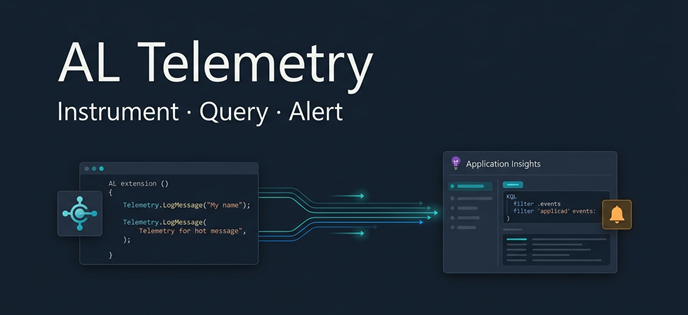
Business Central can emit Application Insights telemetry for extension upgrade failures and upgrade-tag activity.
Depending on the event, telemetry can include:
- The failing upgrade codeunit
- The AL stack trace
- The company
- The old extension version
- The targeted extension version
- The failure reason
- The upgrade tag that was checked or set
Microsoft may hide an exception message when it contains customer-classified data. Therefore, Application Insights should be used together with:
- The Extension Management page
- Deployment Status
- The Business Central Admin Center
- Extension lifecycle telemetry
Production Testing Checklist
Schema
- The app ID is unchanged.
- The version number is higher.
- No published field was renamed directly.
- No published field type was changed directly.
- Old fields remain available for the migration.
- Replacement fields use new IDs.
- Obsolete fields include a reason and tag.
Upgrade Logic
- Completed migration steps are skipped using an upgrade tag or version condition.
- Every historical value has a defined mapping.
- Unsupported values stop the upgrade clearly.
- Existing destination values are not overwritten silently.
- Upgrade tags are set only after successful migration and validation.
- First-install and new-company tag handling is included.
- Post-upgrade validation confirms completion.
- Separate upgrade codeunits do not rely on execution order.
- External calls and other non-transactional actions are excluded.
Testing
- The previous released extension version was installed first.
- Representative legacy data was created.
- Multiple companies were included.
- Blank, unexpected, and conflicting values were tested.
- Failure and retry were tested.
- A production-derived sandbox rehearsal succeeded.
- Dependent extensions were included in the test.
- Important business processes were tested after the upgrade.
- Upgrade telemetry was reviewed.
Conclusion
Upgrading a Business Central extension without data loss is not achieved through one property or deployment option.
It requires a controlled migration path.
Keep the old schema long enough to read the existing data. Add the replacement before depending on it. Validate historical values instead of assuming they are clean. Use upgrade tags to control execution, but use preconditions and post-upgrade validation to protect the data itself.
Most importantly, do not use ForceSync to turn a rejected schema change into an accepted deployment.
The extension compiling successfully is only the beginning.
The real test is whether the customer can upgrade from yesterday’s version—with yesterday’s data—and continue working correctly tomorrow.