- Start With the Business Meaning
- What Happens When You Post a Sales Order?
- Shipping and Invoicing Are Not the Same Thing
- How Does Business Central Know Which G/L Account to Use?
- Item Ledger Entry vs Value Entry
- Item Application Entries: Where Did the Cost Come From?
- When One Sales Line Becomes Multiple Item Ledger Entries
- Inventory Cost Can Change After the Sale
- Does Inventory Cost Always Reach the G/L Immediately?
- What About Codeunit 12?
- COMMIT Inside Posting Code: Be Careful
- How to Troubleshoot Posting Without Getting Lost
- Start With Preview Posting
- The Posting Architecture in One Diagram
- Practical Rules I Follow
- Conclusion
You create a sales order in Business Central.
One customer. One inventory item. Quantity 10.
Then you click Post.
A moment later, you may have:
- A Posted Sales Shipment
- A Posted Sales Invoice
- Customer Ledger Entries
- G/L Entries
- VAT Entries
- Item Ledger Entries
- Value Entries
- Item Application Entries
And depending on your inventory setup, additional inventory costs can still reach the G/L later.
So what actually happened?
The easiest mistake is to think:
Sales Order
    ↓
Post
    ↓
G/L Entries
Business Central posting is much more interesting than that.
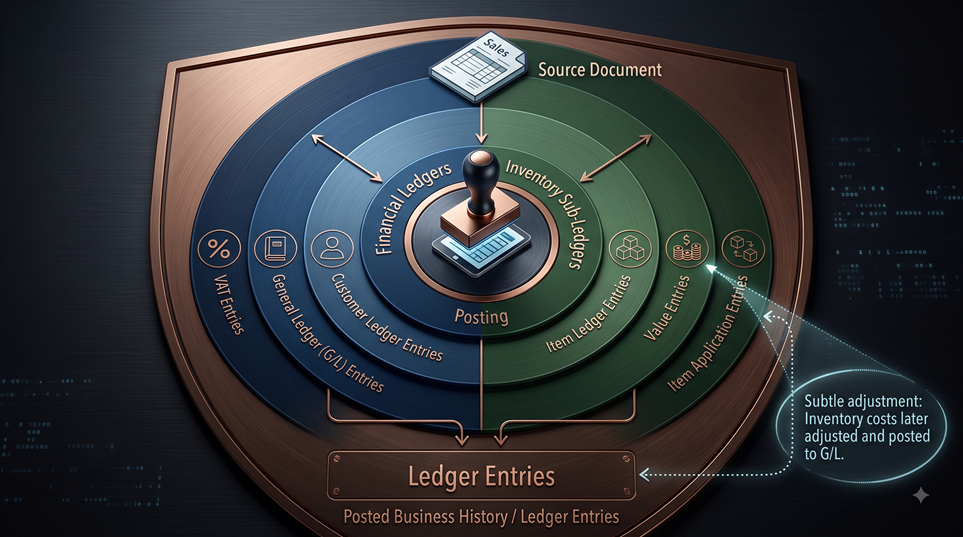
A better mental model is:
Source Document
      ↓
Posting Process
      ↓
Financial Side + Inventory Side
      ↓
Ledger Entries + Posted History
Understanding these layers makes posting issues much easier to troubleshoot — and helps developers avoid dangerous customizations.
Start With the Business Meaning
Before looking at codeunits, understand what each type of record represents.
Suppose we sell 10 units of an inventory item.
Business Central needs to answer several different questions.
| Question | Where Business Central records it |
|---|---|
| What did we ship? | Posted Sales Shipment |
| What did we invoice? | Posted Sales Invoice |
| How much does the customer owe? | Customer Ledger Entry |
| What happened financially? | G/L Entry |
| What happened to VAT? | VAT Entry |
| How much inventory moved? | Item Ledger Entry |
| What was that inventory movement worth? | Value Entry |
| Which inbound inventory supplied the outbound quantity? | Item Application Entry |
This distinction is fundamental.
A Posted Sales Invoice is not the accounting entry.
An Item Ledger Entry is not the complete costing history.
And a Customer Ledger Entry is not the receivables G/L entry.
They represent different views of the same business transaction.
What Happens When You Post a Sales Order?
Posting a sales order can update:
- The customer account
- The general ledger
- The item ledger
- VAT
- Posted shipment records
- Posted invoice records
But these results aren’t produced by one giant “insert everything” operation.
Several posting components cooperate.
For developers, three important codeunits help explain the architecture:
| Codeunit | Main responsibility |
|---|---|
| 80 – Sales-Post | Coordinates sales document posting |
| 12 – Gen. Jnl.-Post Line | Core financial posting |
| 22 – Item Jnl.-Post Line | Core inventory posting |
This is a responsibility map, not a guaranteed internal call sequence.
Developers shouldn’t assume that every current or future posting scenario follows one fixed procedure-by-procedure path.
The useful mental model is:
Sales Order
    ↓
Sales-Post
    ↓
Coordinates the process
    ↓
Financial Side + Inventory Side
    ↓
Customer / G/L / VAT + Inventory Entries
Shipping and Invoicing Are Not the Same Thing
This is especially important for functional consultants.
A sales order can be:
- Shipped only
- Shipped and invoiced
- Partially shipped
- Partially invoiced
- Invoiced later after shipment
Business Central uses fields such as:
- Qty. to Ship
- Qty. to Invoice
to determine what part of the transaction is being posted.
Why does this matter?
Because physical movement and financial invoicing are two different events.
Shipment
Means:
These goods physically left inventory.
Invoice
Means:
This amount is now invoiced to the customer.
Many customization problems begin when someone assumes those two events always happen together.
They don’t.
How Does Business Central Know Which G/L Account to Use?
Usually, it isn’t because an AL developer hardcoded an account number.
Business Central uses Posting Groups.
This is one of the most important parts of the posting architecture.
For a normal sale of an inventory item:
CUSTOMER
 ├─ Gen. Business Posting Group
 ├─ Customer Posting Group
 └─ VAT Business Posting Group

ITEM
 ├─ Gen. Product Posting Group
 ├─ Inventory Posting Group
 └─ VAT Product Posting Group
Those groups combine with setup tables to determine the accounts.
| Accounting effect | Main configuration |
|---|---|
| Accounts Receivable | Customer Posting Group |
| Sales Revenue | Gen. Business + Gen. Product Posting Group |
| Inventory | Inventory Posting Group + Location |
| COGS | Gen. Business + Gen. Product Posting Group |
| VAT | VAT Business + VAT Product Posting Group |
This gives us a very useful troubleshooting rule:
If Business Central created the correct type of entry but posted it to the wrong account, check Posting Groups before changing AL code.
A surprising number of “posting bugs” are actually setup problems.
Item Ledger Entry vs Value Entry
This distinction deserves special attention.
Inventory posting has two major parts:
Quantity
Stored in the Item Ledger Entry.
Value
Stored in Value Entries.
Think of it like this:
Item Ledger Entry
"What happened to the quantity?"

        ↓

Value Entry
"What was that movement worth?"
For example, you purchase 10 units.
Business Central might create:
Item Ledger Entry
Quantity = +10
But that Item Ledger Entry may have several Value Entries over its lifetime:
Value Entry 1 → Direct purchase cost
Value Entry 2 → Indirect cost
Value Entry 3 → Item charge
Value Entry 4 → Later cost adjustment
The physical movement happened once.
The financial value can change later.
That is why Business Central separates quantity from value.
Item Application Entries: Where Did the Cost Come From?
Assume you purchased 10 units and later sold them.
Business Central needs to know which inbound inventory supplied the outbound transaction.
That relationship is maintained through Item Application Entries.
Conceptually:
Purchase
+10 units
    │
    │ Item Application
    ▼
Sale
-10 units
This relationship is essential for forwarding cost from inbound inventory to outbound inventory.
It becomes very important when investigating:
- COGS
- Returns
- FIFO costing
- Specific costing
- Item charges
- Cost adjustment
So when somebody says:
“The sales invoice looks correct, but the COGS is wrong.”
The sales document might not be the problem at all.
The investigation may need to move into:
Item Ledger Entry → Item Application → Value Entry
For a deeper costing discussion, see Inventory Costing in Business Central.
When One Sales Line Becomes Multiple Item Ledger Entries
Here is where the posting architecture gets even more interesting.
Suppose your sales order contains:
Item: LAPTOP
Quantity: 3
And each unit has a serial number:
SN001
SN002
SN003
From the functional perspective, you still have one sales line.
But Business Central needs to preserve each tracked inventory movement separately.
Codeunit 22 can split item posting according to item tracking numbers.
Conceptually:
Sales Line
Quantity = 3

    ↓

SN001 → Item Ledger Entry 1
SN002 → Item Ledger Entry 2
SN003 → Item Ledger Entry 3
Now we no longer have:
one document line → one Item Ledger Entry
We have:
one document line → multiple Item Ledger Entries
Business Central uses relation tables to preserve that relationship:
- Reservation Entry (T337)
- Tracking Specification (T336)
- Item Entry Relation (T6507)
- Value Entry Relation (T6508)
This is an excellent example of why directly manipulating ledger creation is dangerous.
The posting engine isn’t only inserting amounts.
It is also maintaining relationships needed for traceability, costing, and future processing.
Inventory Cost Can Change After the Sale
Another common misconception is:
“Once the sales invoice is posted, the cost is final.”
Not necessarily.
Imagine this:
- You purchase an item.
- You sell it.
- Later, a freight charge arrives from the vendor.
- That charge increases the real purchase cost.
Business Central must now forward that additional cost to the related outbound transaction.
This is what Cost Adjustment helps handle.
When inbound costs change, Business Central can create new adjustment Value Entries.
It does not need to rewrite the original inventory transaction.
Conceptually:
Original Sale
    ↓
Value Entry: -100

Later freight cost
    ↓
Cost Adjustment
    ↓
New Adjustment Value Entry: -10

Final cost = 110
This is why troubleshooting inventory cost requires looking at the history of Value Entries, not only the entries created on the original posting date.
Does Inventory Cost Always Reach the G/L Immediately?
No.
Business Central supports two approaches.
Automatic Cost Posting
Inventory costs can be posted to the G/L automatically when inventory transactions are posted.
Post Inventory Cost to G/L
Inventory value can also be posted to the general ledger later through the inventory cost posting process.
So the architecture can look like:
Item Ledger Entry
        ↓
Value Entry
        ↓
Cost Adjustment if needed
        ↓
Inventory Cost Posting
        ↓
G/L Entry
Business Central also maintains the relationship between inventory values and resulting G/L entries through the G/L – Item Ledger Relation.
This is useful when investigating questions such as:
“I can see the inventory Value Entry. Where is the corresponding G/L Entry?”
Instead of searching only by document number, you can investigate the actual inventory-to-G/L relationship.
What About Codeunit 12?
For developers, the financial side eventually leads us to an important object:
Codeunit 12 – Gen. Jnl.-Post Line
Microsoft’s posting-engine documentation describes a framework that prepares G/L and VAT entries and is responsible for G/L Register creation.
The documented architecture includes a temporary G/L entry buffer.
Simplified:
Financial Calculation
        ↓
Prepare G/L Entries
        ↓
Temporary G/L Buffer
        ↓
Consistency Checks
        ↓
Permanent G/L Entries
One caution is important here.
Microsoft’s detailed design documentation for parts of this engine originates from an earlier NAV architecture, and Microsoft explicitly identifies NAV 2013 R2 in related documentation.
So this is useful for understanding how the financial posting architecture is designed, but developers should not treat every internal routine as a permanent extension API.
For extensions, supported events and current extensibility points are safer boundaries.
COMMIT Inside Posting Code: Be Careful
AL normally manages write transactions automatically.
Database.Commit() explicitly ends the current write transaction.
That means:
Changes
   ↓
COMMIT
   ↓
More Changes
   ↓
Error
The later error cannot simply roll back what was already committed.
That is why adding COMMIT inside posting-related customization requires serious consideration.
A common anti-pattern is:
“Posting is locking something, so I’ll add COMMIT.”
That may reduce one symptom while introducing a much more serious transactional problem.
If the issue is locking, investigate the locking pattern instead of casually changing transaction boundaries.
See Locking and Deadlocks in Business Central: Writing AL Code That Survives Production for more detail.
How to Troubleshoot Posting Without Getting Lost
When something goes wrong, don’t immediately start debugging Codeunit 80.
First identify which layer is wrong.
| Problem | First place to investigate |
|---|---|
| Wrong revenue account | General Posting Setup |
| Wrong receivable account | Customer Posting Group |
| Wrong VAT | VAT Posting Setup |
| Wrong inventory quantity | Item Ledger Entries |
| Wrong inventory cost | Value Entries + Item Applications |
| Inventory cost missing from G/L | Cost Posted to G/L + G/L – Item Ledger Relation |
| Wrong shipment/invoice information | Posted document / source document |
| Customization-only issue | Posting event subscribers/extensions |
This saves a huge amount of debugging time.
Start With Preview Posting
Before posting, use Preview Posting.
Preview Posting lets users inspect the different entries that would be created by the posting operation.
This is useful for both functional consultants and developers.
If Preview Posting already shows the wrong revenue account:
Don’t start by debugging Codeunit 12.
Check the Posting Groups.
If the expected entries look correct in preview but production posting later behaves differently, the investigation moves in another direction.
Preview Posting is one of the simplest diagnostic tools in Business Central — and one of the most useful.
The Posting Architecture in One Diagram
If you remember only one flow from this article, make it this one:
SOURCE DOCUMENT
Sales Header / Sales Line
        ↓
POSTING ORCHESTRATION
Sales-Post
        ↓
FINANCIAL SIDE
Customer Ledger / G/L / VAT
        +
INVENTORY SIDE
Item Ledger / Value / Applications
        ↓
Cost Adjustment if required
        ↓
Inventory Cost → G/L

PLUS

POSTED DOCUMENT HISTORY
Shipment / Posted Invoice
And remember one additional rule:
One source line does not always equal one ledger entry.
Item tracking is a perfect example.
Practical Rules I Follow
1. Check configuration before code
Wrong account? Start with Posting Groups.
2. Separate quantity from cost
Item Ledger Entry = primarily inventory movement. Value Entry = inventory value.
3. Don’t assume posting finishes the costing lifecycle
Costs can be adjusted later.
4. Don’t treat posted documents as ledgers
They serve different purposes.
5. Customize at the highest safe level
Don’t interfere with low-level ledger creation if the business requirement can be solved at the document or setup level.
6. Be very careful with COMMIT
Transaction boundaries are part of data integrity.
7. Debug from the symptom
Don’t automatically start from Sales-Post. Find the affected layer first.
Conclusion
The Post button looks simple because Business Central deliberately hides the complexity from the user.
But underneath, posting is coordinating several different responsibilities:
- Business document history
- Customer and vendor subledgers
- General ledger accounting
- VAT
- Inventory quantity
- Inventory value
- Cost applications
- Posting Groups
- Cost adjustments
- Transaction integrity
The important lesson isn’t to memorize every internal procedure in Codeunit 80, 12, or 22.
It is to understand which part of Business Central owns which responsibility.
Then a posting problem becomes much easier to classify:
Wrong account? Check Posting Groups.
Wrong quantity? Check Item Ledger Entries.
Wrong inventory cost? Check Value Entries and Item Applications.
Cost missing from G/L? Check inventory cost posting and the G/L relationship.
Tracked item created several entries? That’s expected — the source-document structure doesn’t always map one-to-one to the ledger structure.
Once you understand that model, the Business Central posting process stops looking like a black box.
And that makes both troubleshooting and customization much safer.