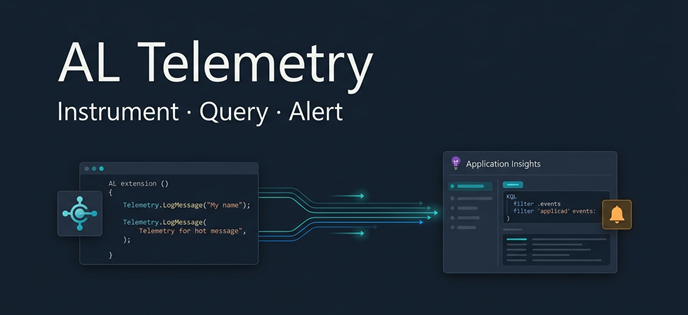
Most Business Central developers eventually connect Application Insights and consider the environment “monitored.”
That is only the setup.
The real question is different: can your telemetry tell you whether your extension is working, failing, or slowing down? Can support investigate a production incident without waiting for the developer who wrote the code?
If the answer is no, you do not have observability. You have a telemetry destination with nothing useful going into it.
This article is about designing AL telemetry that actually answers production questions:
- Did the process run?
- Did it succeed or fail?
- Which company, environment, app version, and object was involved?
- Is this a one-time error or a recurring pattern?
- Should someone be alerted right now?
That is the difference between logging and practical telemetry.
- The Real Problem: The Incident Nobody Saw Coming
- Telemetry Is Not a Log File
- Two Ways to Emit Custom Telemetry
- The DataClassification Trap That Silently Drops Your Telemetry
- TelemetryScope: Where Does Your Signal Actually Go?
- Designing Events That Do Not Break Your KQL Later
- What to Instrument in Your Extension
- Built-In Signals Worth Knowing Before You Add Anything
- Querying Telemetry with KQL: The Queries That Actually Matter
- Three Alerts Every BC Extension Should Have
- Controlling Cost Before It Surprises You
- Common Mistakes
- Production Recommendations
- Conclusion
The Real Problem: The Incident Nobody Saw Coming
Business Central production issues rarely come with clean error messages.
A user does not say: “Codeunit 50123 failed after the third retry because the external API returned HTTP 429.”
They say: “The invoice did not reach the portal.” Or: “Yesterday it was working.” Or simply: “The system is slow.”
By the time a developer looks at the environment, the session is gone, the user forgot the exact time, the error dialog was not captured, and the job queue may have already retried twice without a trace.
This is what telemetry is designed to prevent. But it only prevents it if the signal was designed before the incident happened.
The difference between bad and good telemetry is not volume. It is precision.
Bad telemetry says: “Something failed.”
Good telemetry says: “The e-invoice clearance call failed in Production, company ABC, extension version 1.4.2.0, endpoint Clearance, result Failed, retryable No, reason Timeout, duration 12,400 ms, correlation ID 9c1a…”
The second version gives support something to search, gives developers something to fix, and gives operations something to alert on.
Telemetry Is Not a Log File
It is tempting to treat Application Insights like a remote log file. Most developers who do that end up with noisy, expensive, and unhelpful data.
A log is written for a developer reading it line by line. Telemetry should be designed for aggregation, filtering, alerting, and support investigation.
A useful mental model: telemetry answers questions, it does not narrate execution.
Before emitting any custom event, ask: what production question does this answer? If no one would query this during an incident, it probably should not be an event.
Microsoft documents that Business Central can emit telemetry to Azure Application Insights to help troubleshoot scenarios that cannot be reproduced or where you do not have access to the user’s environment. That framing is useful. Custom telemetry adds the business context the platform cannot know — what the operation was, what the result was, why it failed, and what the system decided to do about it.
Two Ways to Emit Custom Telemetry
There are two main patterns for emitting custom telemetry from AL:
Session.LogMessage- The
FeatureTelemetrycodeunit from the System Application
They overlap, but they are different tools for different problems.
Session.LogMessage: Full Control, More Responsibility
Session.LogMessage is the low-level way to emit a custom trace event directly to Application Insights. It gives you complete control over event shape.
It is the right tool when you need to log a specific operational event with custom context, such as:
- External API call succeeded or failed
- E-invoice cleared or rejected
- Payment export generated
- Retry scheduled
- Batch import completed with warnings
- Integration synchronization finished
A practical example. This helper logs a failed external API call with dimensions that can be queried and alerted on:
local procedure LogApiFailure(EndpointName: Text; FailureCategory: Text; IsRetryable: Boolean; DurationMs: Integer)
var
    CustomDimensions: Dictionary of [Text, Text];
begin
    CustomDimensions.Add('Area', 'ExternalApi');
    CustomDimensions.Add('EndpointName', EndpointName);
    CustomDimensions.Add('Result', 'Failed');
    CustomDimensions.Add('FailureCategory', FailureCategory);
    if IsRetryable then
        CustomDimensions.Add('Retryable', 'true')
    else
        CustomDimensions.Add('Retryable', 'false');
    CustomDimensions.Add('DurationMs', Format(DurationMs, 0, 9));

    Session.LogMessage(
        'OSB-API-0001',
        'External API Call Failed',
        Verbosity::Warning,
        DataClassification::SystemMetadata,
        TelemetryScope::ExtensionPublisher,
        CustomDimensions);
end;
This is not a universal template. It is a pattern that demonstrates the key decisions:
- Unique event ID with an app-specific prefix
- Short, readable message in “Object ActionInPastTense” form
- Stable, queryable dimensions with PascalCase names
DataClassification::SystemMetadata— more on why this is non-negotiable shortlyTelemetryScope::ExtensionPublisher— a deliberate routing decision
Notice what is not in the dimensions: customer name, email, full document number, full request body, API response body, access token, or any sensitive value. Telemetry should help you diagnose production behavior, not leak customer data into Application Insights.
Microsoft documents two overloads for Session.LogMessage: one using a dictionary (as shown above), and one accepting up to two inline key-value pairs. Both are valid. The dictionary form is more practical for events with several dimensions.
The FeatureTelemetry Codeunit: The Higher-Level Path
For feature-level observability, Microsoft provides the FeatureTelemetry module in the System Application. It is a better fit when the question is not “what happened in this process?” but rather: is the feature being used? Was it configured? Did it fail?
There are three event types:
LogUsage— called when a feature is successfully usedLogError— called when a feature error should be explicitly sent to telemetryLogUptake— called when a user transitions through uptake states:Undiscovered,Discovered,Set up,Used
A minimal example for tracking successful usage:
local procedure LogEInvoiceExported()
var
    FeatureTelemetry: Codeunit "Feature Telemetry";
begin
    FeatureTelemetry.LogUsage(
        'OSB-EINV-0001',
        'E-Invoicing',
        'E-Invoice Exported');
end;
One behavior worth knowing: Microsoft explicitly documents that FeatureTelemetry.LogError still logs an event even if the database transaction it runs inside is later rolled back. That makes it more reliable than raw Session.LogMessage for error scenarios where you need a signal to survive a failed transaction.
For Session.LogMessage, Microsoft does not clearly document whether events emitted inside a rolled-back transaction are sent or suppressed. Do not design critical diagnostics around that assumption. Validate it in the runtime and version you actually support.
FeatureTelemetry also requires explicit setup. Microsoft documents that an app must register a codeunit implementing the Telemetry Logger interface to route feature telemetry into the extension pipeline. Without the Telemetry Logger setup, FeatureTelemetry will not be routed to the app/extension telemetry pipeline as expected. Microsoft also documents that diagnostic telemetry is emitted when no logger is registered or the registration is incorrect — so treat this as a hard setup requirement, not optional decoration. This setup failure is easy to miss, similar to the DataClassification trap covered in the next section.
Which One Should You Use?
Do not turn this into a binary choice. Use the tool that fits the signal.
| Scenario | Better choice | Why |
|---|---|---|
| Track feature usage | FeatureTelemetry.LogUsage | Standard feature usage dimensions |
| Track feature uptake funnel | FeatureTelemetry.LogUptake | Built-in uptake states |
| Log explicit feature errors | FeatureTelemetry.LogError | Documented rollback survival behavior |
| Log external API result | Session.LogMessage | Custom process dimensions needed |
| Log retry scheduling | Session.LogMessage | Operational process event |
| Log batch duration and result | Session.LogMessage | Custom dimensions are useful |
| Log every user page open | Avoid unless specific reason | Becomes noisy and expensive |
| Log every loop iteration | Avoid | High volume, low signal |
| Log sensitive values | Never | Privacy risk |
The practical rule: use FeatureTelemetry for product and feature observability. Use Session.LogMessage for process and operation observability.
The DataClassification Trap That Silently Drops Your Telemetry
This is the most common mistake and the hardest to debug, because it produces no error.
Microsoft is explicit: events with a DataClassification other than SystemMetadata are not sent to Azure Application Insights.
This code compiles, runs, and does nothing visible:
Session.LogMessage(
    'OSB-API-0002',
    'External API Call Failed',
    Verbosity::Warning,
    DataClassification::CustomerContent,  // ← This event will never reach Application Insights
    TelemetryScope::ExtensionPublisher,
    CustomDimensions);
The developer expects telemetry. Nothing arrives. The mystery is not in the platform — it is in this one parameter.
For telemetry intended to reach Application Insights, design the event so the message and dimensions contain only metadata, then use DataClassification::SystemMetadata.
This also functions as a forced privacy review. If you feel tempted to use CustomerContent, stop and ask what sensitive value you are about to log and why. In almost every production support scenario, you do not need the actual customer value. You need a category, a status, a duration, an object type, and a safe correlation ID. Log the metadata. Not the content.
On-premises note: For Business Central on-premises deployments, Microsoft also documents that the server Diagnostic Trace Level can filter telemetry by severity. Lower-verbosity signals may not be emitted depending on server configuration, regardless of
DataClassification.
TelemetryScope: Where Does Your Signal Actually Go?
TelemetryScope is an architectural routing decision, not just a parameter.
| Scope | Where the event goes |
|---|---|
TelemetryScope::ExtensionPublisher | Only to the Application Insights resource in the extension’s app.json |
TelemetryScope::All | To the extension publisher resource and to the environment-level telemetry resource |
Use ExtensionPublisher when the signal is for the app publisher or ISV — feature usage, app health, integration failures the developer needs to diagnose.
Use All carefully and intentionally — when the environment admin or VAR partner should also see the signal. For example: a critical business process failure that requires the customer’s support team to act, not just the ISV developer.
Do not default everything to All because it feels safer. That increases noise for the environment-level consumer, may contribute to ingestion cost, and exposes signals outside the extension publisher’s own telemetry pipeline. Make it a deliberate call.
Designing Events That Do Not Break Your KQL Later
Telemetry is a contract, not just code.
Microsoft explicitly says that telemetry event definitions should be treated as an API. If you change event IDs, rename dimensions, or change what dimension values mean after dashboards and alerts are built on top of them, you break the operational layer around your extension. Someone will spend an afternoon wondering why an alert stopped firing, and the answer will be a renamed dimension key.
EventId Convention
Use a unique event ID per meaningful event. Use an app-specific prefix.
Good:
OSB-API-0001
OSB-API-0002
OSB-JQ-0001
OSB-EINV-0001
Bad:
MYAPP-ERROR
ERROR-001
FAIL
A good event ID tells you exactly where the event came from. This matters especially when your extension emits to an environment-level resource where many apps write signals alongside yours.
Message Convention
Microsoft recommends the “Object ActionInPastTense” pattern.
Good:
External API Call Failed
E-Invoice Exported
Batch Import Completed
Retry Scheduled
Bad:
Invoice 103045 for Customer ABC failed because timeout happened at 10:32
Put queryable details into dimensions. Keep the message short and stable. A readable message column makes scrolling through KQL results much faster, because you can understand what happened without opening every row.
Dimension Naming Convention
Use PascalCase dimension names. No spaces. No hyphens.
Good: EndpointName, FailureCategory, DurationMs, CorrelationId
Bad: endpoint name, failure-category, duration in milliseconds
The reason this matters in KQL: Business Central automatically prefixes custom AL dimension keys with al in Application Insights. If your AL code adds Result, the KQL will see it as customDimensions.alResult. If your key has spaces, the KQL becomes significantly harder to write. PascalCase produces readable, consistent queries across all events.
What to Instrument in Your Extension
The goal is not full coverage. It is signal at the right boundaries.
1. External Boundaries
Anything that crosses the boundary of Business Central deserves telemetry. API calls, webhooks, file exports, e-invoice clearance calls, payment submissions, external validations — every one of these is a place where things fail in ways the platform cannot see.
For each external call, these are the dimensions that consistently matter in production support:
| Dimension | Example values |
|---|---|
EndpointName | Clearance, SubmitInvoice, GetStatus |
Result | Succeeded, Failed, Skipped |
FailureCategory | Timeout, Validation, Authentication, RateLimit |
Retryable | true, false |
DurationMs | 1240 |
CorrelationId | Safe generated identifier, not customer content |
Do not log full payloads. If you need payload-level debugging, use a controlled temporary diagnostic mechanism with explicit customer approval. Do not use production telemetry as a payload dump.
2. Long-Running Business Processes
If a process is important enough that users complain when it is slow, it is important enough to measure.
Custom posting extensions, batch imports, mass updates, integration synchronization jobs, document generation — these processes should emit a completion event with at minimum a result, a duration, and a record count. That is the data needed to answer: is the process getting slower over time? Did a specific version introduce a regression?
Be careful with frequency. One event per batch is usually useful. One event per record inside a large loop can generate thousands of signals per run and make cost management painful.
3. Retry and Recovery Paths
A retry without telemetry is invisible.
When a retry happens, log the decision — not only the final failure. Useful dimensions: AttemptNo, MaxAttempts, Retryable, NextRetryInSeconds, FailureCategory.
This lets support distinguish between a temporary failure with retry scheduled, a final failure requiring user action, and a final failure after all attempts. Three very different situations that look identical in a user complaint.
4. Feature Usage and Uptake
For AppSource apps or reusable PTE frameworks, knowing whether a feature is actually used is as important as knowing whether it fails.
When a customer says “nobody uses this feature,” telemetry should be able to confirm or contradict that. Use FeatureTelemetry.LogUsage for successful use and FeatureTelemetry.LogUptake to track the discovery-to-configuration-to-use funnel.
5. Configuration and Lifecycle Events
Some events are rare but operationally important because they explain everything that came after: setup changed, integration endpoint switched, feature activated, migration completed, upgrade step finished.
If failures start after a configuration change, a timeline event gives you the evidence to connect the two.
What Not to Instrument
Some telemetry makes production support worse by creating noise that obscures the real signal.
Avoid: every page open, every loop iteration, every successful low-value validation, full API request/response bodies, sensitive customer values, and events no one would query during an incident.
The one-question test: what production question does this event answer? If you cannot answer that before writing the code, do not add the event.
Built-In Signals Worth Knowing Before You Add Anything
Business Central already emits many useful signals to Application Insights. Start there. Add custom telemetry only where your extension has missing business context that the platform cannot provide.
Job Queue Lifecycle Events
Job Queue telemetry is one of the most actionable areas to monitor out of the box.
Microsoft documents the following event IDs:
| Event | Event ID | Why it matters in production |
|---|---|---|
| Entry enqueued | AL0000E24 | Confirms the job was actually scheduled |
| Entry started | AL0000E25 | Confirms execution began |
| Entry finished | AL0000E26 | Useful for duration tracking and “no runs” monitoring |
| Entry failed — may retry | AL0000HE7 | Early warning, not necessarily action-required |
| Entry failed permanently — stopped | AL0000JRG | Requires manual intervention |
For production alerting, AL0000JRG is the first one to cover. A retryable failure may resolve on its own. A permanently stopped job will not.
Long-Running SQL Queries
The platform automatically emits telemetry for SQL queries that exceed 750 milliseconds. This is valuable because slow performance is almost always reported as a vague complaint — “Business Central is slow today” — and the actual cause is usually a specific query from a specific object.
Before adding custom performance telemetry for any process, check whether the built-in long-running query signal already captures the relevant operation. It often does.
Lock Timeout Events
Lock timeout telemetry gives you the session that was blocked, the object involved, the stack trace, and the timing. The snapshot event that accompanies it can help identify sessions holding locks at the time.
One important interpretation note: the session in the timeout event is the victim, not necessarily the cause. The blocking session may be a different user, a Job Queue entry, or an integration call. Telemetry helps you find the waiting session; architectural judgment is still required to fix the pattern. The locking article on this blog covers that in detail.
Querying Telemetry with KQL: The Queries That Actually Matter
Business Central telemetry is stored in the traces table in Application Insights. If you query through a Log Analytics workspace, Microsoft documents equivalent table names such as AppTraces. Treat the examples below as starting points and validate them in your own workspace.
The goal with KQL is not to view raw events. It is to answer a specific production question with a filtered, structured result that a support engineer can read in 30 seconds.
Query: All custom events from your extension
Useful for getting oriented during an incident — see everything your extension emitted across all environments.
traces
| where timestamp > ago(24h)
| where tostring(customDimensions.eventId) startswith "OSB-"
| project
    timestamp,
    message,
    eventId = tostring(customDimensions.eventId),
    environmentName = tostring(customDimensions.environmentName),
    environmentType = tostring(customDimensions.environmentType),
    companyName = tostring(customDimensions.companyName),
    appVersion = tostring(customDimensions.extensionVersion),
    result = tostring(customDimensions.alResult),
    failureCategory = tostring(customDimensions.alFailureCategory)
| order by timestamp desc
Query: Failed integration calls, grouped by endpoint and failure reason
The first query to run when an integration is reported as broken.
traces
| where timestamp > ago(24h)
| where tostring(customDimensions.eventId) == "OSB-API-0001"
| where tostring(customDimensions.alResult) == "Failed"
| summarize
    Failures = count()
    by
    tostring(customDimensions.environmentName),
    tostring(customDimensions.companyName),
    tostring(customDimensions.alEndpointName),
    tostring(customDimensions.alFailureCategory)
| order by Failures desc
This answers: which endpoint is failing, in which environment and company, and why — in one result set.
Query: Final job queue failures
Run this when a job queue entry stops responding or users report scheduled work is not happening.
Some Job Queue telemetry dimensions — such as
alJobQueueObjectName— were introduced in later Business Central versions. Validate the available columns in your target environment before using this query unchanged.
traces
| where timestamp > ago(1h)
| where tostring(customDimensions.eventId) == "AL0000JRG"
| project
    timestamp,
    environmentName = tostring(customDimensions.environmentName),
    companyName = tostring(customDimensions.companyName),
    jobQueueEntryId = tostring(customDimensions.alJobQueueId),
    objectName = tostring(customDimensions.alJobQueueObjectName),
    objectId = tostring(customDimensions.alJobQueueObjectId),
    stackTrace = customDimensions.alJobQueueStackTrace
| order by timestamp desc
Query: Feature usage by environment
Useful for ISV support and customer success conversations.
traces
| where timestamp > ago(7d)
| where tostring(customDimensions.alCategory) == "FeatureTelemetry"
| where tostring(customDimensions.alSubCategory) == "Usage"
| summarize
    UsageCount = count()
    by
    tostring(customDimensions.alFeatureName),
    tostring(customDimensions.alEventName),
    tostring(customDimensions.environmentName),
    tostring(customDimensions.environmentType)
| order by UsageCount desc
Three Alerts Every BC Extension Should Have
Not every error deserves an alert. A good alert means someone can act on it, it is urgent enough to interrupt their workflow, and it contains enough context to begin investigation without further digging.
Before building any alert, put the signal on a dashboard first. Understand what normal looks like. Then alert when the signal represents a real operational problem, not just noise.
Alert 1: Final job queue failure
Alert on AL0000JRG. A stopped job usually requires manual action.
traces
| where timestamp > ago(1h)
| where tostring(customDimensions.eventId) == "AL0000JRG"
Set the alert recurrence to match the lookback window — if the query looks back 1 hour, run the alert check every hour.
Alert 2: Non-retryable integration failure
Alert when a failure cannot resolve itself.
traces
| where timestamp > ago(15m)
| where tostring(customDimensions.eventId) == "OSB-API-0001"
| where tostring(customDimensions.alResult) == "Failed"
| where tostring(customDimensions.alRetryable) == "false"
For retryable failures, alert only if the count crosses a meaningful threshold — five failures in 30 minutes may be critical for invoice clearance but expected noise for a polling process.
Alert 3: No successful run in the expected window
Sometimes the absence of telemetry is the signal.
If an integration job must complete every 15 minutes, alert if no successful completion was emitted in the last hour:
traces
| where timestamp > ago(1h)
| where tostring(customDimensions.eventId) == "OSB-API-0003"
| where tostring(customDimensions.alResult) == "Succeeded"
| summarize SuccessfulRuns = count()
| where SuccessfulRuns == 0
This type of alert is powerful because not every failure produces a visible error. A job may stop, remain on hold, fail to enqueue, or never reach the code path you instrumented. Silence can mean failure.
Controlling Cost Before It Surprises You
Telemetry has real ingestion cost. Microsoft’s telemetry cost guidance recommends controlling it through a combination of daily caps, sampling, Data Collection Rules (DCR), cost alerts, and retention decisions. Pricing changes over time — always verify current Azure Monitor pricing before using numbers in customer estimates.
From an AL design perspective, the most effective cost control happens before deployment: do not emit low-value telemetry.
Avoid per-record events in large loops, verbose success signals for high-frequency operations, and debug-level telemetry left permanently enabled in production. In production, fewer high-signal events are worth far more than thousands of low-value traces.
For environments where telemetry volume is significant, workspace-based Application Insights resources can help because they support Log Analytics capabilities such as Data Collection Rules — KQL-based ingestion filters that let you drop specific event categories before they are billed.
Common Mistakes
Logging only the final error. If you log only the end state, you lose the path. For important processes, instrument key transitions: call initiated, result received, retry scheduled, final failure. Not for every process — only for the ones where support regularly needs to understand what happened.
Using dynamic dimension names. Do not create a new dimension key per endpoint or per scenario:
// Bad
Endpoint_Clearance_Failed
Endpoint_Submit_Failed
Use stable dimension names with stable keys and varying values:
EndpointName = "Clearance"
Result = "Failed"
Stable dimensions make KQL reusable and alerts maintainable.
Reusing one event ID for many different events. If every failure in your extension shares the same event ID, you cannot filter by incident type. One event ID per meaningful event type is the right granularity.
Logging sensitive data. Telemetry should not become a shadow database of customer content. If you need a correlation handle, generate a safe ID at the start of the process and use it throughout. Do not pass through customer emails, names, document details, or secrets.
Building alerts before understanding the baseline. An alert on day one for a signal you have never observed produces either constant false positives or immediate alert fatigue. Query first. Dashboard second. Alert only when you know what normal looks like.
Skipping the rollback question. If your Session.LogMessage call sits inside code that may roll back, the event may or may not arrive in Application Insights — Microsoft does not clearly document this behavior for raw Session.LogMessage. Do not design critical diagnostics around an undocumented assumption. For error signals that must survive rollback, FeatureTelemetry.LogError is documented to behave correctly in that scenario.
Production Recommendations
Define an event catalog before you ship. A short internal document that maps event IDs to their purpose, dimensions, and alert status prevents telemetry from becoming random code comments.
| Event ID | Message | Purpose | Alert? |
|---|---|---|---|
OSB-API-0001 | External API Call Failed | Diagnose integration failure | Yes, if non-retryable |
OSB-API-0002 | External API Call Succeeded | Measure duration | No |
OSB-API-0003 | Integration Job Completed | Monitor run completion | Yes, absence alert |
OSB-EINV-0001 | E-Invoice Exported | Feature usage | No |
Use an app-specific event ID prefix. This matters in multi-extension environments and when your signals flow into an environment-level resource where many apps emit alongside yours.
Keep dimensions stable. Adding new dimensions is safe. Renaming existing ones breaks queries and alerts without warning. When you need to evolve telemetry, add alongside, not instead of.
Use built-in telemetry first. For Job Queue lifecycle, long-running SQL, lock timeouts, web service calls, extension lifecycle, and error dialogs, Business Central already emits the signal. Custom telemetry should add business context the platform cannot know — not duplicate what it already tracks.
Test telemetry like you test code. After deploying to a sandbox: trigger the success path, trigger the failure path, confirm the event appears in Application Insights, confirm dimensions appear with the expected al prefix, run the KQL query, and verify no sensitive data is present. Telemetry that is never tested is optimistic code.
Conclusion
Telemetry is not proof that your AL code executed. It is the system that lets production support understand what happened when nobody can reproduce the issue.
The most useful telemetry events are not the most detailed ones. They are the ones that answer a real question, use stable dimensions, respect privacy, and connect to an action.
Start at the process boundaries. Instrument the result. Make it queryable. Alert only when someone can act.
That is how observability becomes part of your Business Central architecture — not a log stream that nobody looks at until something goes catastrophically wrong.